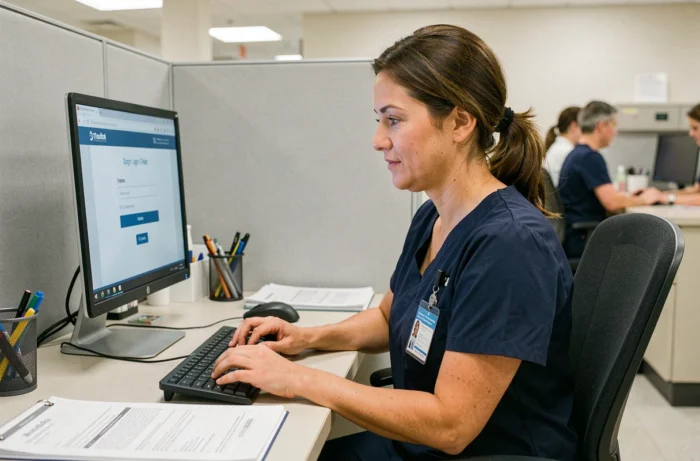
An agent from CHU Clermont-Ferrand finishing their night shift and wanting to check their schedule from the parking lot before heading home often finds themselves facing a login screen that rejects their password. The issue rarely stems from the identifier itself, but rather from confusion between the different portals of the CHU or a browser that has stored the wrong cookies. Here’s a rundown of the concrete steps to access Chronos without wasting time.
Extranet, webmail, intranet: three portals, three distinct URLs
The primary source of blockage, by far the most common, relates to confusion between the digital accesses of the CHU. The extranet portal, professional email, and internal intranet each use a different URL and authentication page. Attempting to log in to Chronos via the webmail link, for example, redirects to a page that does not recognize the session.
Chronos is accessible from the extranet portal of CHU Clermont-Ferrand, not from the intranet (reserved for the internal network of hospital sites). If you are outside the establishment, it is indeed the extranet address that you need to target. To find useful references regarding the connection to Chronos CHU Clermont Ferrand, you can check the exact URL before entering your credentials.
A simple reflex: save the URL of the extranet portal as a favorite on your phone or your usual browser. This avoids going through a Google search that sometimes leads to outdated pages or PDF documents without a direct link to the platform.
Chronos CHU credentials: what to enter and where to find them
The login identifier for Chronos generally corresponds to the agent’s employee number assigned by the human resources department. It is neither the professional email address nor the badge number. Feedback on this point varies by department, but in the majority of cases, the employee number is found on the payslip, at the top right of the document.
The initial password is provided by the IT department or the immediate supervisor upon starting the job. It is recommended to change it at the first login. If forgotten, the reset procedure goes through the CHU’s IT department, not through a “forgot password” link on the login page (this button does not always exist on hospital portals).
What to do when the account is locked
After several failed attempts, the account may be temporarily locked. Two concrete options:
- Contact the CHU IT support directly via internal phone (the number is displayed in each department, often near the care station)
- Go through the health supervisor of the department, who can relay the unlock request to the IT department
- Wait for the automatic unlock delay, which can range from a few minutes to several hours depending on the security policy in place
Attempting to create a new account or using a colleague’s credentials does not work and may trigger a security alert.
Chronos connection outside the establishment: network and enhanced authentication
Accessing Chronos from home or from a mobile network does not work the same way as within the CHU. On the internal network, authentication may be simplified by the establishment’s proxy. From the outside, additional authentication is often required.
Several healthcare establishments now require two-step validation for any remote connection. This means that in addition to the employee number and password, you must validate a temporary code via an application installed on your phone (like Microsoft Authenticator). If this application is not configured in advance, the connection will be denied without an explicit error message, which confuses many agents.
Preparing your phone before the first remote connection
To avoid blockage, it is recommended to set up the authentication application while still on-site, connected to the CHU network. The IT department usually offers support during the first installation. Without this prior step, attempting to configure the application from the outside complicates the procedure.
The phone used must also be locked by code or biometrics. An unlocked device may be rejected by the authentication system, which checks for a minimum level of security on the terminal.

Navigating Chronos after login: schedule and absence requests
Once logged in, the Chronos interface can be confusing during the first uses. The agent space provides access to two main functions: consulting the service schedule and entering absence requests.
The displayed schedule corresponds to the current cycle. To view the following weeks, use the navigation arrows at the top of the screen. Changes made by the health supervisor appear in real-time, but a manual refresh of the page is sometimes necessary to see them.
Submitting a leave or recovery request
The request goes through a form integrated into the agent space. You select the type of absence (annual leave, RTT, recovery), the relevant dates, and then confirm. The request remains pending until the supervisor has processed it. No automatic notification confirms the submission in all cases, so it is better to check the status directly in Chronos after a few days.
- Ensure that the requested dates do not overlap with a period already taken by a colleague from the same department, as Chronos may block the request without a clear explanation
- Prefer submitting during the week: requests entered on weekends are only processed upon the supervisor’s return
- Keep a screenshot of the request summary, useful in case of any future disputes
Chronos centralizes the management of working hours for medical and non-medical staff. The tool equips the majority of CHUs in France and manages both schedules and replacements or on-call duties. At CHU Clermont-Ferrand, it is the single entry point for any questions related to working hours, making mastery of the connection all the more useful on a daily basis.